macOS
To drag around any window by clicking and dragging from any points (not just the title bar) while holding down Ctrl + Cmd, enter this in the terminal:
defaults write -g NSWindowShouldDragOnGesture -bool true
Windows
Install Scoop
Why
- Scoop centralizes (most) of the software in your Windows install in a single place.
- It keeps all of your software up to date (if you want to).
- It keeps all of the files belonging to a program in a single place, so uninstalling them will be clean and easy.
- Makes it super easy to install and uninstall software.
For example - you want to install Calibre? All you need to do is run scoop install calibre from the Terminal.
Basically, to install software, you won’t need to navigate to websites anymore and you can just do everything handy from the Terminal.
Then, when you want to uninstall it, you just go scoop uninstall calibre and that’s it. It just takes care of a lot of things.
Install base Scoop
- From Start, search for “Windows Terminal”. If you have it installed open it, if you don’t have it installed just click on this link to open its Store page and install it with one click. Then open it.
- Once you are in the Windows Terminal (in a Powershell tab), paste this and click Enter:
Set-ExecutionPolicy -ExecutionPolicy RemoteSigned -Scope CurrentUser
Invoke-RestMethod -Uri [<https://get.scoop.sh>](<https://get.scoop.sh/>) | Invoke-Expression
- That’s it, Scoop is installed. To search for a program in Scoop (for example to see if Scoop has Calibre), just run
scoop search calibre. To install it,scoop install calibre.
By default, Scoop only looks at an “official” repository which has a limited number of programs available. Also, its search is kind of slow. There are ways to expand greatly what’s available and to make it a lot faster. For that, follow the next section.
Expand Scoop (necessary IMO)
Following this section will make your Scoop search a lot faster and it will add a ton more software available when you search.
From you Windows Terminal (Powershell), after you have installed scoop, run:
scoop bucket add .sm <http://github.com/okibcn/ScoopMaster>
Then:
scoop install ss
Once you have done the above steps, to search for a software on Scoop, don’t run scoop search calibre , instead run ss calibre and it’ll be a lot faster.
How to use Scoop
Install
Let’s say I want to install something. For example, I want to install the program called StartAllBack which I talk about in the next section.
- I open the Windows Terminal
- I type
ss startallback - I check the results. For example:
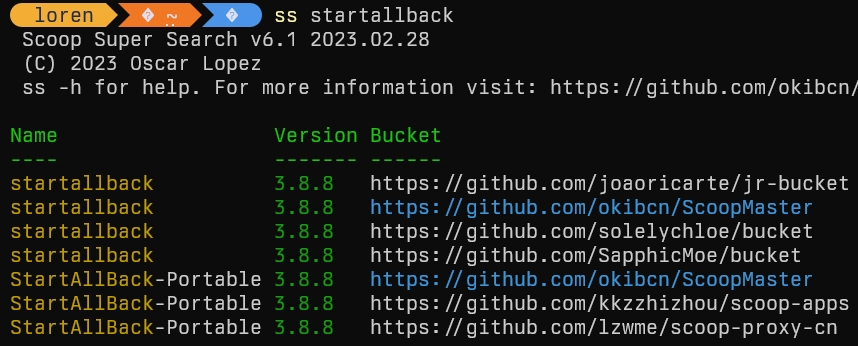
Ok, this means it’s available.
- I run
scoop install startallback. and scoop installs it for me. that’s it.
See a list of all of the programs you installed with Scoop
Run scoop list
Update programs
To see if you have programs that need updating, run scoop status.
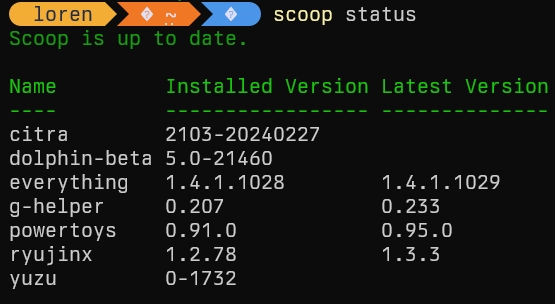
Here, for example, I can update everything, g-helper, powertoys, etc.
To update powertoys, for example, all I need to do is run scoop upgrade powertoys and it updates it for me.
You can also update all of your Scoop programs at once by running scoop upgrade *.
Uninstall programs
scoop uninstall powertoys (for example to uninstall powertoys).
StartAllBack
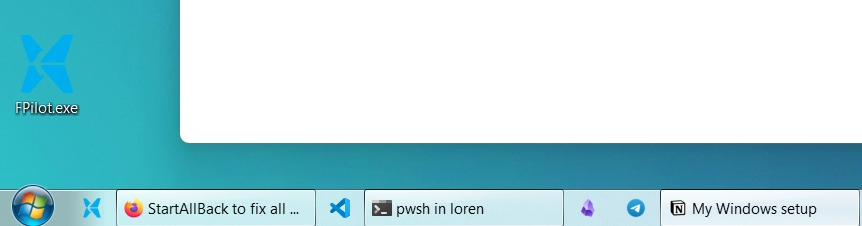
StartAllBack brings back the Windows 7 taskbar and start menu. In my mind, that is the cleanest version of the Windows UI.
You can install it from expanded Scoop by running scoop install startallback. The version on Scoop is a little older though, if you want to install the latest version, you can run the following command in your terminal:
winget install StartIsBack.StartAllBack --scope machine
(this uses Winget, which is a microsoft “official” version of Scoop which comes preinstalled in Windows. Scoop is superior in general though.)
There is a trial period of a few months, after which it asks you to pay 5 dollars once. There are ways to circumvent it (contact me) but I think 5 usd is great value for this.
Wintoys
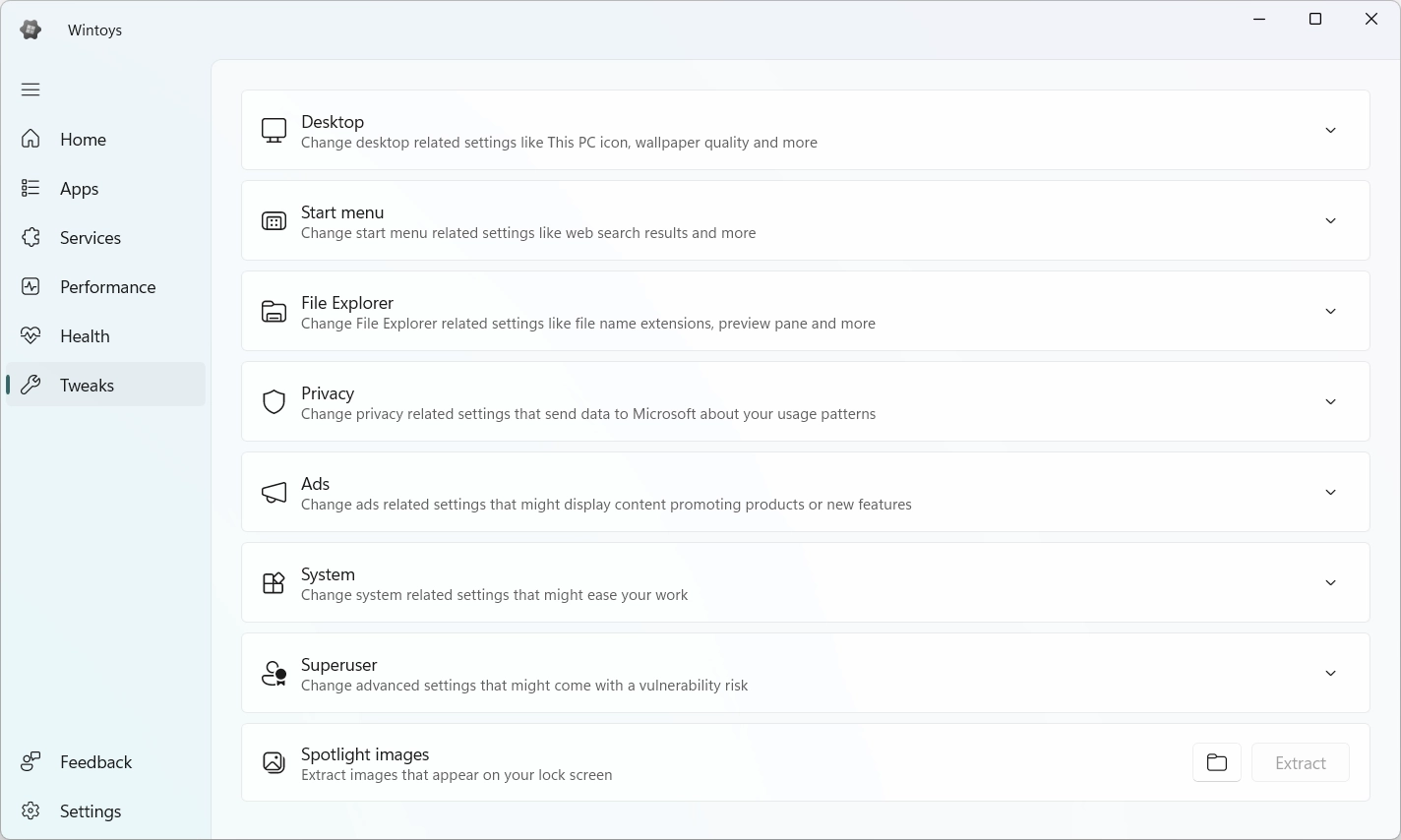
Absolutely essential software to remove a ton of Windows garbage. You can only install it from the Store, from this link.
Once installed, open it, go to the Tweaks section, and enable/disable anything you want. It just gives you a ton of control over some Windows internals. For example, disabling the silly ads in the Start menu, and others.