The Hyper Key Trick
TL;DR
Setting up a Hyper key allows you to have an extra modifier key which you can then bind, in combination with other keys, to do anything you want on your computer. For example, I press Hyper + B to open my browser from anywhere.
I like making custom keyboard shortcuts for stuff on my computer, especially when paired with app launchers like Raycast.
Thing is, you never know which shortcuts are already in use by your system or by individual apps. You wouldn’t want to create a custom keyboard shortcut which overwrites something important somewhere else. The “Hyper” key is the solution to this.
Basically, you remap your Caps Lock key such that when you press it, your computer thinks you are pressing ⇧⌃⌥⌘ at the same time (affectionately called the Hyper key). You can then pair this key to other keys (for example Hyper + T to open your terminal) to create your custom shortcuts which almost never conflict with existing ones.
Here’s how you can accomplish this on macOS. (on Windows, you can accomplish this with AutoHotKey, but I have never tried it myself)
- Download and install Karabiner. Open it after installation to finish up its setup.
- Click on “Complex Modifications” and then on “Add your own rule”
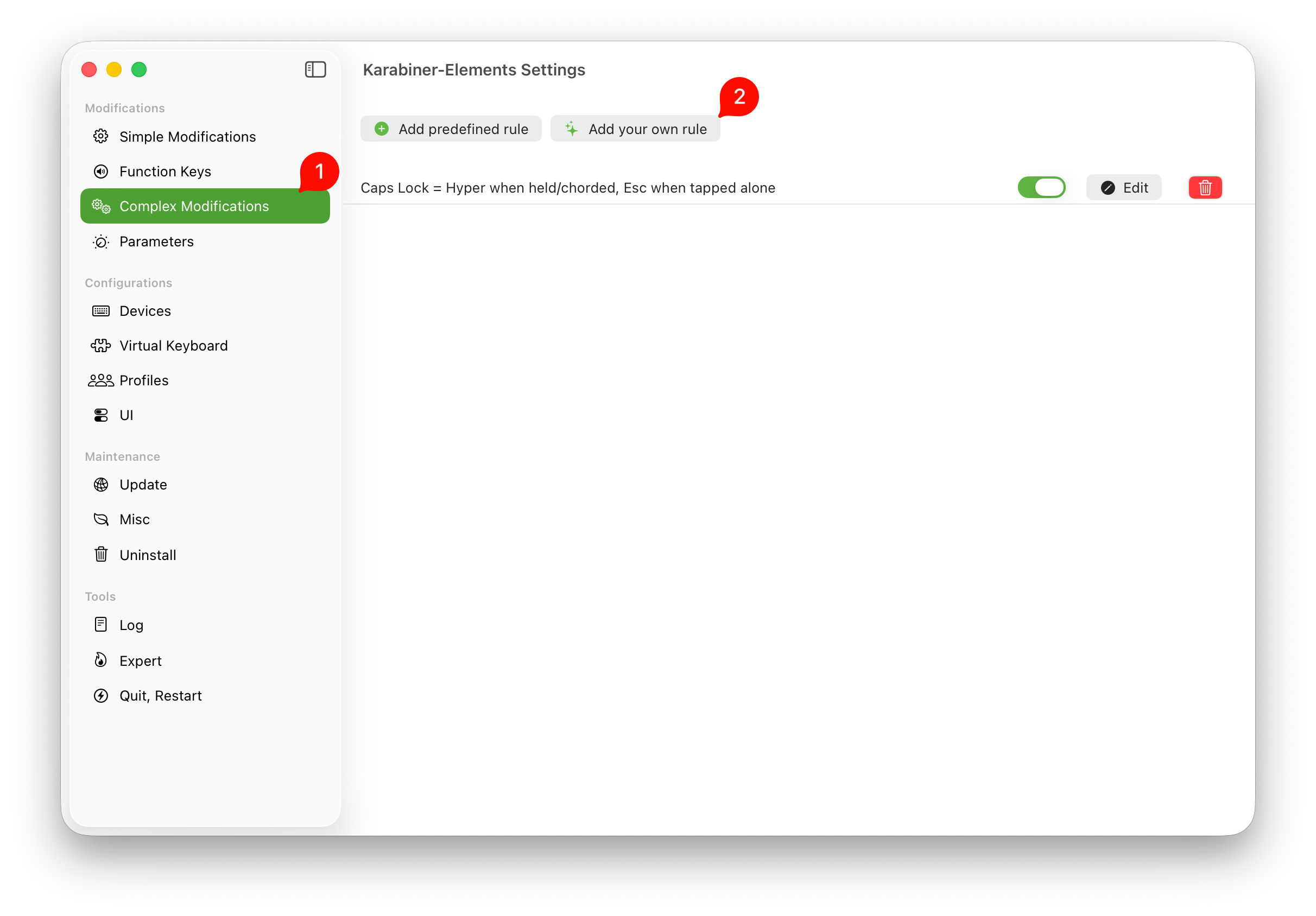
- Paste the following in the dialog that pops up
{
  "manipulators": [
    {
      "type": "basic",
      "description": "Caps Lock = Hyper when held/chorded, Esc when tapped alone",
      "from": {
        "key_code": "caps_lock",
        "modifiers": { "optional": ["any"] }
      },
      "to": [
        {
          "key_code": "left_shift",
          "modifiers": ["left_command", "left_control", "left_option"],
          "lazy": true
        }
      ],
      "to_if_alone": [
        { "key_code": "escape" }
      ],
      "parameters": {
        "basic.to_if_alone_timeout_milliseconds": 250
      }
    }
  ]
}
- Press Save. That’s it. Now, if you press Caps Lock on its own, it acts as an Escape button. If you press it together with other keys, it acts as a Hyper key.
Then, for example, if you use Raycast, it’s super simple to bind something like Hyper + T to open your terminal. Here’s how you can do it.
- Open Raycast’s settings
- Go to the Extensions tab, and search for the name of your terminal app. In my case, it’s Ghostty.
- Click on the field in the “Hotkey” column, then press Hyper + T (or whatever you want) on your keyboard.
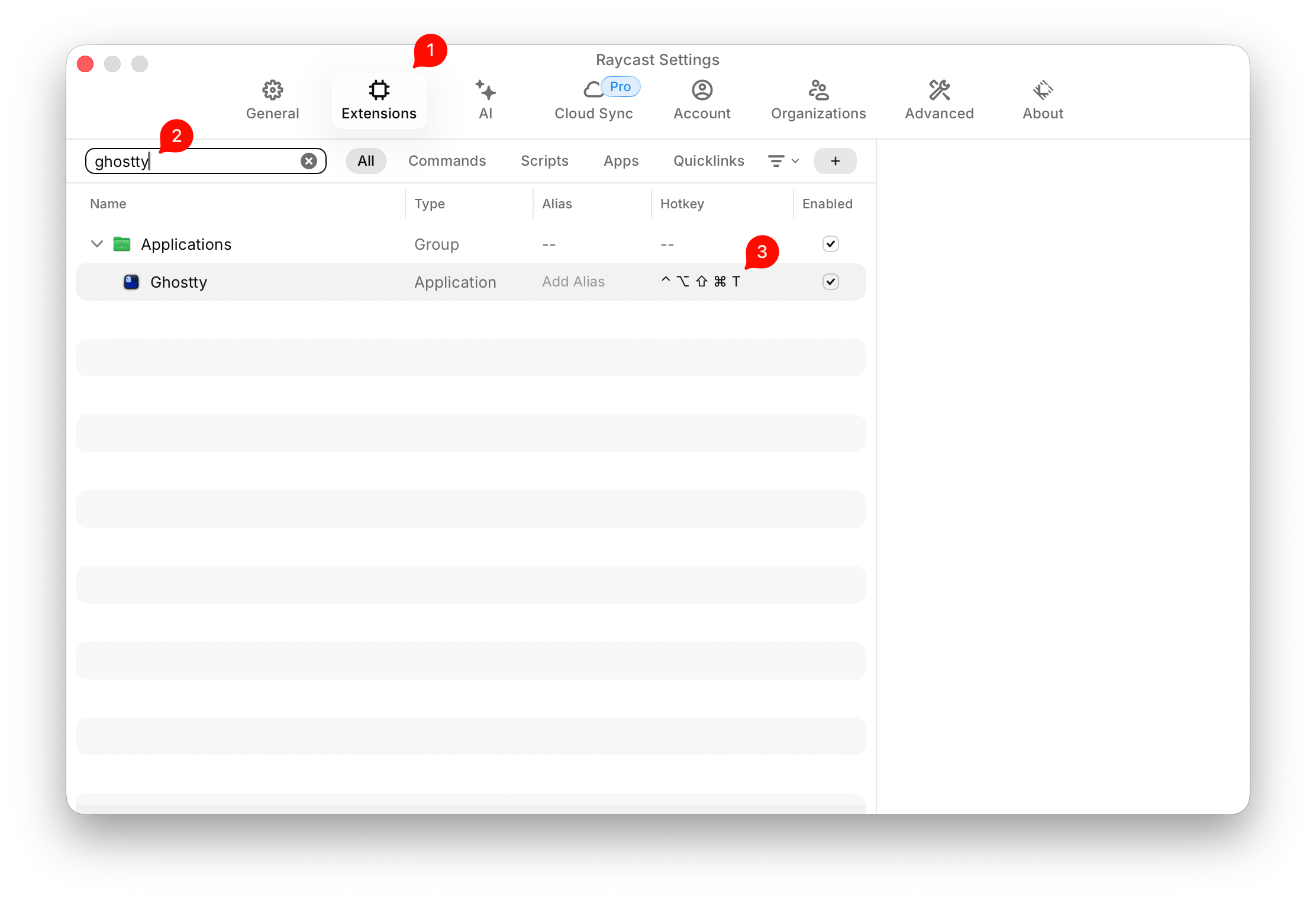
- That’s it. Now, whenever you press Caps Lock + T anywhere, your terminal will open up.
I usually also like to bind Hyper + B to my browser, and Hyper + O to Obsidian. With Raycast, you can do pretty much anything, so you could bind Hyper + X to open x.com for example. The sky’s the limit.